
Table of Contents
How to Enable Browser Notifications
Email Notification Settings and Configuration
How are Notification Settings Organized?
What Events can be Configured?
Who has access to Org Notification Settings?
Where are Org Notification Settings located?
How to Configure Org Notification Settings
How do I know when Org Notification Settings have been changed?
Who has access to User Notification Settings?
Where are User Notification Settings Located?
How to Configure User Notification Settings
How to Save Changes to User Notification Settings
Introduction
Notifications are an important part of how Hi Marley operators interact with the web-app. In this article, you will learn about all the ways that Hi Marley notifications will be delivered to you in the app!
Hi Marley provides several options for notifying users on various events on Hi Marley conversations. These notifications are categorized into three groups:
- In-App Notifications: visual alerts that can only be viewed when navigating the web app
- Browser Notifications: alerts that will occur when a new message is received. Browser Notifications are unique because you have minimized the web app or are on another tab.
- Email Notifications: emails sent to the email address that is located in your Hi Marley Profile when events occur in Hi Marley
In App Notifications
New message indicator
The red dot new message indicator appears when a message is unread by you, the operator. The red dot will appear for any new message activity that you have not read yet.
The new message indicator are specific to each operator, so if you read the message on a chat, it will not impact other members of your team in Hi Marley who may not have read the message yet.
Audio Notifications
An auditory chime-style notification will occur on any new inbound message on any case that you as a User are assigned as the primary operator. Your browser needs to be running and you need to be logged into Hi Marley web application for the sound to occur. You can enable/disable the audio notification by clicking on the speaker in the top right toolbar.
Audio is enabled:
Audio is disabled:
Browser Notifications
The Browser notifications are enabled through Google Chrome to notify the operator when a new message is received.
Browser notifications will appear over other windows the user may have open. Users are prompted to enable notifications when they first log in to the app. They can also be adjusted in the browser settings.
The Chrome window must be open, either running in the background or minimized, for the operator to receive browser notifications.
How to Enable Browser Notifications
To receive browser notifications from Hi Marley, you must enable notifications in both your browser and your operating system. You will not receive notifications until they are enabled in both places.
Step 1a: Enable Browser Notifications (Google Chrome)
- Open chat.marley.ai in Google Chrome
- Click the Padlock icon in the search bar
- Toggle ON Notifications
- Toggle ON Sounds
- Click Reload to apply your permission changes
Alternatively, chrome browser notifications can be enabled from Chrome Settings by following the steps below:
- Navigate to Chrome Settings
- Select Privacy and Security -> Site Settings -> Notifications
- Scroll down to the Allowed to send Notifications section and Add "https://[*.]marley.ai"
If the organization is using Windows' native notifications for Outlook, calendar, etc., they can toggle this setting so that notifications from Hi Marley look and behave the same as their other notifications.
Step 1b: Enable Browser Notifications (Microsoft Edge)
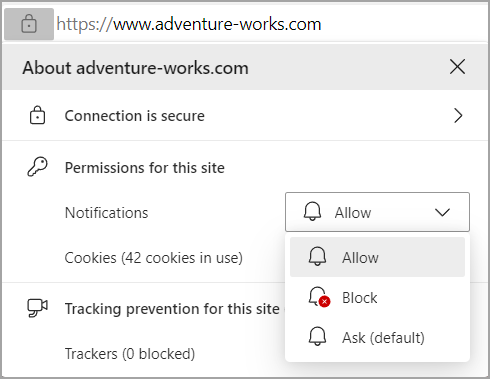
Manage notifications from your browser address bar To check or manage notifications while visiting a website you’ve already subscribed to, follow the steps below:
- Select View site information to the left of your address bar.
- Under Permissions for this site > Notifications, choose Block from the drop-down menu.
Note: You can resubscribe to a website's notifications in the future by returning to this menu and choosing Allow.
Step 2a: Enable Notifications in Your Operating System (Windows)
After enabling notifications in your browser, you must also enable them in your operating system. Follow the steps below based on whether you're using Windows or Mac.
For Windows Users:
1. Open the Start menu and select Settings.
2. Go to System and then select Notifications & actions
3. Under Notifications from apps and other senders, make sure both your browser (Chrome or Edge) for Hi Marley are turned ON.
Step 2b: Enable Notifications in Your Operating System (Mac)
For Mac Users:
1. Open System Preferences from the Apple icon menu in the top left of your home screen.
2. Click on Notifications.
3. In the left panel, select your browser (Google Chrome or Microsoft Edge).
4. Toggle Allow Notifications to ON.
5. Choose your notification alert style (banners and or alerts) and customize other settings like sounds as needed.
Important Note:
You are not done until you have enabled notifications in both your browser and operating system. If notifications are enabled in only one place, they will not appear.
Email Notification Settings and Configuration
Hi Marley email notifications can be configured at the organization and user level!
Let's take a look at how to leverage Notification Settings to meet the needs of your organization or workflow.
Important Note:
(Media Files being received will not trigger an email notification)
How are Notification Settings Organized?
Notification settings are organized by Events. These configurations are managed at two levels
An Event is how the notification will be triggered (ex. a customer opting in, an inbound message being received).
What Events are Configurable?
Opt-in
When an end-user opts in by responding with "Yes" to a welcome message, an email notification will be sent to the primary operator assigned to the case. The email notification will be sent regardless of whether the primary operator is logged in or active in the web app. Secondary operators will not receive an email notification.
Example email notification for opt-in:
Assigned to a Case
When you are assigned to a case as a Primary Operator you will receive an email notifying you that you have been assigned as the operator on a case. Below will give you an idea as to what this email notification will look like. There will be a button in the email that, if you click it, will take you directly to the case you were assigned to within Hi Marley.
Case Reassignment
If a case has been reassigned from a different Primary Operator to you, you will receive an email notifying you that you have been reassigned to a case. Here is a sample of an reassignment email. Clicking on the "View Case in Hi Marley" button will take you directly to the case in Hi Marley.
Primary Operator Assignment
Notification Settings when an operator is assigned as a Primary operator to a case.
Secondary Operator Assignment
When you are added to a case as a Secondary Operator you will receive an email notifying you that you have been added to a case. Below will give you an idea as to what this email notification will look like. There will be a button in the email that, if you click it, will take you directly to the case you were assigned to within Hi Marley.
New Message
When an inbound message from an end-user is sent on a case, an email notification will be sent to all operators assigned to the case, both primary and secondary. The email notification will only be sent to operators who are not active in the Hi Marley application. Activity is determined by a mouse click in the Hi Marley web application. An operator is considered to be not active if no mouse clicks were detected in the last 15 minutes.
NOTE: Operators will automatically be logged out after 12 hours of session inactivity, e.g., no scrolling, clicking.
Example email notification for a new message:
User Mentioned in Case Note
Notification Settings when a user is mentioned on a case note.
User Mentioned in Case Note Reply
Notification Settings when there is a reply to an operators case note.
Org Notification Settings
Who has access to Org Notification Settings?
Users with Admin permissions.
Where are Org Notification Settings located?
In the "Manage Tab" under the "Notifications" header.
How to Configure Org Notification Settings
Each Notification Channel can be in one of three states, required, optional, and disabled*
Required - Enabled for all users (email notifications will be sent for selected event for all users)
Optional - Enabled for all users by default but users can toggle in User Notification Settings to fit their preference (email notifications will be sent out if the user has left the setting enabled)
Disabled - Disabled for all users (email notifications will not be sent out)
*Chrome Push Notifications are available for users to turn on through their browser settings, but are not configurable within the Hi Marley platform.
How do I know when Org Notification Settings have been changed?
The heading at the top of the page will let you know who edited the settings and when it was changed last.
User Notification Settings
Who has access to User Notification Settings?
All Users within Hi Marley, regardless of User role.
Where are User Notification Settings Located?
In the Profile under the "Notifications" header.
How to Configure User Notification Settings
The Org Notification Settings for your organization determine which state each Notification Channel is in - required, optional, or disabled*
Required - Enabled for all users & can only be reconfigured in Org Notification Settings
Optional - Enabled for all users by default & configurable by the user to fit their personal preference
Disabled - Disabled for all users & can only be reconfigured in Org Notification Settings
*Chrome Push Notifications are available for users to turn on through their browser settings, but are not configurable within the Hi Marley platform.
How to Save Changes to User Notification Settings
At the end of the preference page, there is a button to save all changes the user has made. Once saved, the preferences should update.
Comments
0 comments
Please sign in to leave a comment.