
Table of Contents
Automated Messages & Suggested Templates
Title Express Events in Total Loss Assist
Technical Configuration Overview
What is Total Loss Assist?
Hi Marley’s Total Loss Assist (TLA) improves total loss process inefficiencies to improve claims handling. Through our seamless integration with the Copart Seller Portal, Hi Marley reduces the number of touchpoints needed to resolve auto total loss claims while increasing customer satisfaction.
Why Total Loss Assist?
Auto Total Losses Are Challenging
Navigating a total loss claim is difficult for everyone. Consumers become aggravated with process uncertainty, disjointed communication and managing multiple vendors. As the process drags on, carriers face increasing costs through storage fees, rental charges and productivity loss.
With a steady increase in auto total loss claims year-over-year since 2016, reimagining collaboration across the insurance ecosystem is critical for reducing cycle times, lowering costs and improving the customer experience.
The Impact of Total Loss Assist

For a carrier who is not leveraging Hi Marley's platform today, Total Loss Assist (TLA)...
- Saves carriers $125-150* per total loss claim.
*Estimated calculations for rental days, phone tag/voicemail volume, and excess storage fees. - Increases the number of customers who are likely to renew after a total loss claim.
- Reduces claim cycle time by 30-40% between FNOL and vehicle pickup.
- Increases NPS promoters by 7%.
Overview of Total Loss Assist
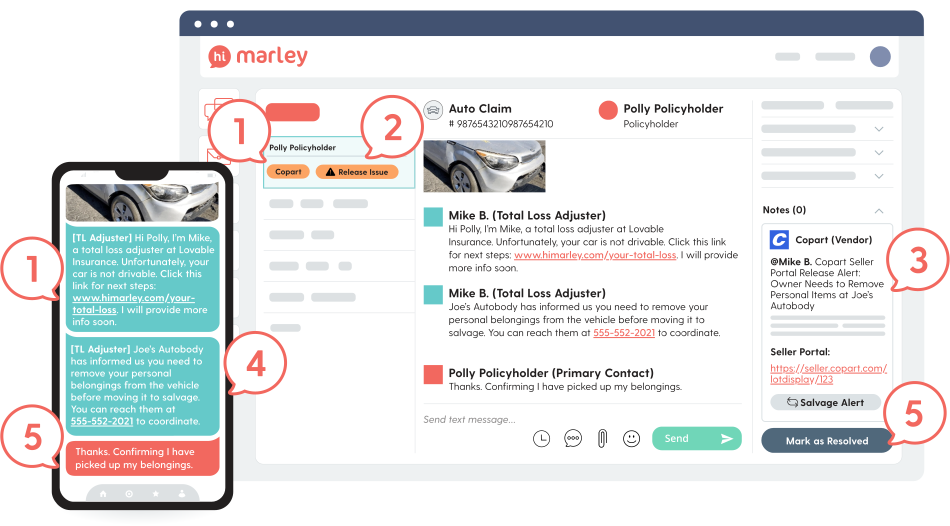
Hi Marley’s Total Loss Assist notifies operators when there is a release issue on a total loss claim. This could be an adjuster, total loss coordinator, field rep, or another operator. At the same time, an automated text message is sent to the policyholder with steps to resolve the issue.
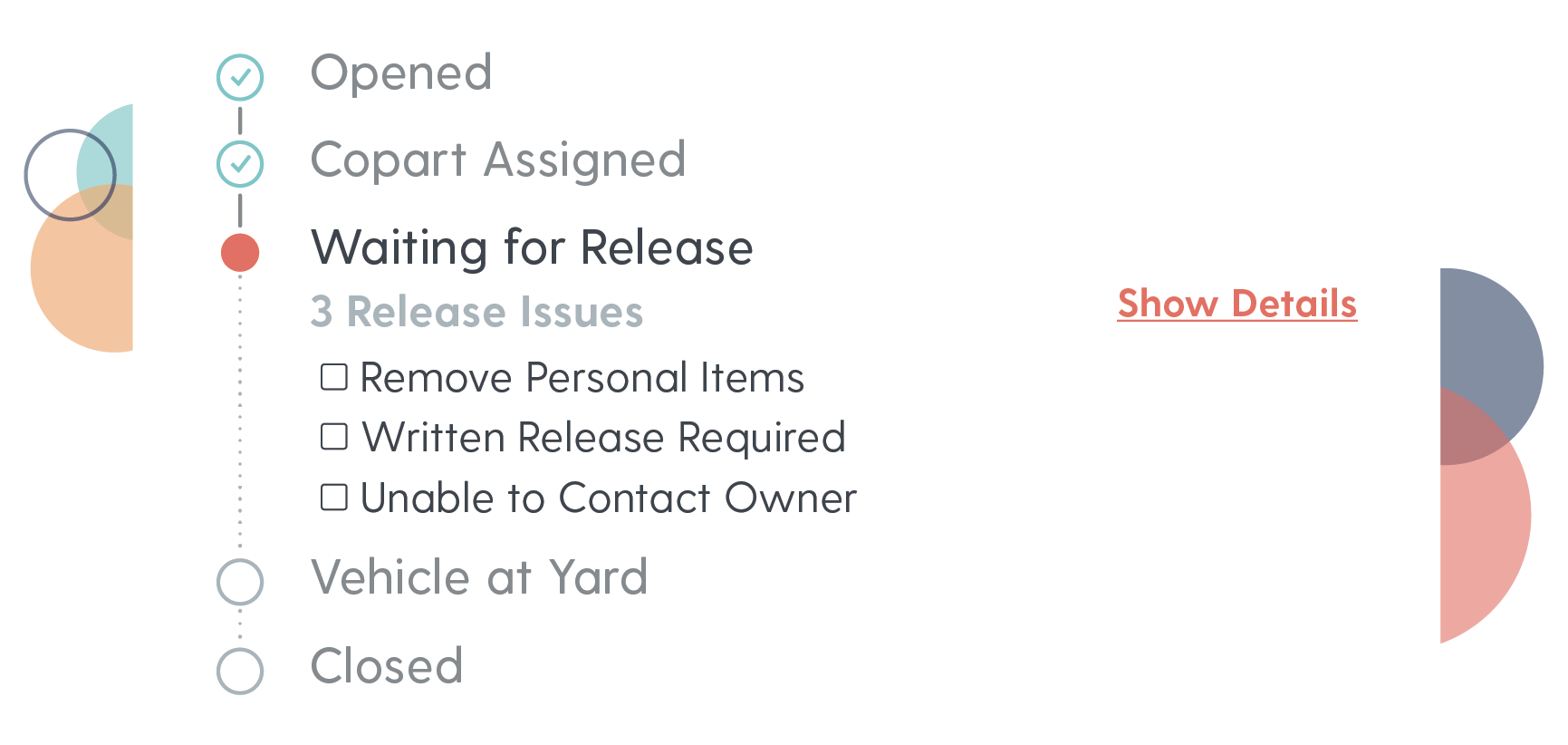
As an auto total loss claim is processed, Hi Marley tracks claim progress alongside the ongoing text conversation to:
- Identify claim status
- Keep users informed about what’s next
- Highlight release or other process issues
- Provide details on resolved steps
- Enhance supervisor support
TLA Configuration
Enabling Total Loss Assist
Start by talking to your Account Manager (AM) or Customer Success Manager (CSM) to get more information on Total Loss Assist.
A carrier must email their Copart Account Rep requesting to turn on the Copart feed for specific Seller Code(s) to Hi Marley. We ideally would like to have your Copart data turned on for 5-10 days before going live with Total Loss Assist for analysis.
Total Loss Assist requires no technical work for a carrier.
Case Matching
To be successful with Total Loss Assist, a strong the match rate percentage between Copart and Hi Marley will ensure Total Loss Assist will be most impactful. The match rate is the ratio of Copart assignments that have an associated case in Hi Marley.
Hi Marley looks to match a claim on the following data points to match cases:
- Claim Number
- First and Last Name of the Insured
- Insured Phone Number
If your claim numbers have a prefix or suffix in one system and not in another, we have the capability to align claim numbers and match from one system to the other.
Automatic Assignment
- Once a Hi Marley case has been found, Total Loss Assist has the ability to add a user to the existing Hi Marley case, ensuring all correct parties are on one trusted thread
- TLA can also add another secondary operator at the time when a release issue is created
Assignment Logic
- Assign directly from Copart’s Seller Portal
- Those users that are in the role = assignment, would be automatically added to the HM case either at time of Copart Assignment and/or alerted for every release issue that is created
- Hard Coded based on Seller Codes
- If there is a breakdown by seller code of specific individuals who monitor/work a total loss case we can add them at the time of a release issue. EG Joe Smith works Seller Code HM123, when there is a release issue for a case with that seller code, alert and add Joe
- Add no one in TLA workflow
- There is the ability to not add or alert anyone at time of copart assignment or release issue creation
- Proxy Email
- We can also alert a proxy email if that email inbox is monitored for assignments
More Information about Proxy Email
Two email sources are used:
Copart Coordinator – Added during onboarding with the seller code.
Assigned Coordinator – Comes in the payload with role Assignment.
Logic:
Initial Copart assignment → uses `Assigned Coordinator`.
Release issue (create/update) → uses Copart Coordinator if present, else Assigned Coordinator.
At vehicle check-in, Copart Coordinator (if it was added) on the job is removed.
Automated Messages & Suggested Templates
Template Configuration Page
This page gives Admin’s at a carrier the ability to see (as well as turn on or off) all Copart Rules that will trigger a SMS Action (suggest and/or automate) and the ability to edit the template copy.
A carrier can have a combination of suggested vs automated rules:
- Only enable Suggested Rules
- Only Enable Automated Rules
- Enable all Suggested AND Automated Rules (Hi Marley’s Best Practice)
- Enabled a subset of either Suggested or Automated Rules
To locate the Templates Configuration page, click on Settings > Integration Settings > Copart Integration – only Admins will have access to this page.
List of all Rules and Corresponding Action
- Select "Edit Rule" Under Actions
- Enable or Disable Rule
- Ability to Toggle Rule On or Off
- Copart Trigger(s) for Rules:
- Rules are triggered by Copart Events directly sent to Hi Marley (eg assignment created, new release issue etc)
- Should these events be present on a claim, and the rule was on, the action would take place
- These Rule triggers are not editable, through our discovery, we have compiled a comprehensive list of Copart rules we think will fit most carriers' workflows
- Action for Rule
- This is the action that will take place, should this rule be on
- Options: Suggested or Automated
- There is a separate rules for Suggested vs Automated for the same trigger
Edit the Copy of the SMS
- Select "Edit Template" under Actions
You can see a brief preview of the SMS copy for each rule from the main screen. When you want to edit the copy of a given template, click on the button to “Edit Template” and a modal will appear allowing you to edit the copy. You can also edit the title for each rule
Copart Tokens
We have a set of data fields coming directly from Copart that you can select to use in your SMS Copy that will populate with data from Copart when inserted into a case.
- $shopName: Name of the shop where the vehicle is being held and where Copart needs to collect from
- $shopAddress: Address of the Shop
- $shopPhoneNumber: Phone number of the shop
- $yardName: Name of the Copart Yard where the vehicle will be towed to by Copart
- $yardAddress: Address of the Copart Yard
- $yardPhoneNumber: Phone number of the Copart Yard
- $lotNumber: Unique Copart ID
Where can I find the Automated SMS?
Rules that trigger an automated SMS to be sent will be turned off by default when first added to a carrier. The carrier must go in and enable those rules in order for them to fire the automated messages
- The Automated SMS rules have “Automated” at the end of the rule’s title.
List of all possible automated SMS Rules:
1.) Copart Assignment is created and Hi Marley Match found
There are 2 versions of the SMS dependent on where the vehicle is currently located, at a residence vs at a shop. The SMS will have specific instructions to the insured on what to do next based on the location of the vehicle.
2.) New Release Issue Created: Written, Verbal & At Shop, Pick up your Belongings & At Shop and Unable to Contact & At Residence
An individual SMS will fire for each release issue. A policy holder may receive multiple sms messages, but we have optimized the SMS copy to be succinct if they were to receive multiple release issues and texts at a time
3.) Vehicle Checked into Copart Yard
Partner Icons
Within the Hi Marley App, users will notice a Vendor Logo displayed alongside each SMS message that is generated automatically in response to a Partner Event. This feature is designed to enhance the user experience by providing immediate visual cues that identify the source of the message.
This functionality significantly streamlines the process for adjusters, allowing them to easily discern which messages originate from various vendors such as Copart. By clearly marking these communications, adjusters can quickly and efficiently manage their workflow, ensuring that they can respond to vendor messages with the appropriate level of attention and urgency. This clarity helps to minimize confusion and enhances overall communication between parties involved in the claims process.
Where can I find the Suggested SMS to Edit?
To toggle a suggested sms rule on/off or edit the copy, you should navigate to the template configurations page and search for Rules with “Suggested” in the title.
You will notice that there are more rules for Suggested vs Automated. We can build more complex logic for Suggested rules based on how Copart sends us updates on the case, therefore you will see Rules that will be triggered based on more than one open release issue at a time.
Where can I be prompted to select a the Suggested SMS?
In order to select a Suggested Template, a user should look inline on the gray message and click “View Suggested Templates”. The message tray will open on the right hand side and Suggested templates will be presented at the top.
Title Express Integration
For carriers utilizing Copart’s Title Express product, Total Loss Assist can accelerate the title document process by sending an automated SMS to the policyholder when Title Express is activated in the Copart Seller Portal.
This message includes the policyholder’s unique Title Express URL, guiding them to upload their title documents directly to the Copart portal—speeding up title transfers and reducing delays.
The Title Express URL also appears in the Copart Data Tray within Hi Marley for easy adjuster access.
How to Enable:
Navigate to Settings > Integration Settings > Copart Integration and turn on the “Title Express Rule” under TLA configuration.
Title Express Events in Total Loss Assist
Total Loss Assist now publishes additional Title Express events directly into the claim conversation as short, actionable in-thread messages. Adjusters see status and next steps in the conversation so they don’t need to switch systems.
Newly supported events:
Title Express request created
Additional information required from the seller
Documents requested to continue processing
Lienholder approval (OK to Pay) initiated
Owner approval (OK to Pay) initiated
How these events appear:
Each event appears in the claim thread as a concise message that shows the event type, a brief description of what is needed, and (when relevant) who should act next (seller, lienholder, owner, or adjuster).
Admin note:
No additional configuration is required for organizations already using TLA with Title Express. If events do not appear, contact your CSM or Hi Marley Support.
Total Loss Assist Functionality
Tags
After a Copart assignment is matched with a Hi Marley case, Total Loss Assist adds the following two tags to the Inbox
-
“COPART” Tag: Added when we find a matched case from Copart to HM.
- This is a permanent tag
-
“Release Issue” Tag: Added when there is a release issue created for a case.
- Transient Tag, will be removed when all release issues have been marked as resolved by Copart
- “TITLE EXPRESS” Tag (when applicable): Added when a unique Title Express URL is received from Copart.
Gray Inline Messages
- We add an inline gray message to the chat log for the following Copart Events
- Copart Assignment Created
- Release Issue Created (sub text listing specific one)
- Release Issue Marked Complete (when done in HM, if marked as complete in Copart we will not show this)
- Release Issue Updated
- Release Issue Resolved
- Vehicle Checked in at Copart Yard
Copart Data Tray
- All relevant Copart Data will be housed in its own tab labeled as "Copart Data"
- Timing: The Copart Data Tray will appear when there is a Copart Assignment event received and a Hi Marley match has been identified
What Data is shown?
- Contains a link to Copart Seller Portal
- Data:
- Owner Name and phone
- Vehicle Info
- Vehicle Location, whether at residence or a business/shop
- Address and Phone number for above
-
Title Express URL (if applicable)
- Direct upload link for the policyholder’s title documents
Case Progress Tab
- Timing: The Case Progress tab will appear when there is a Copart Assignment event received which indicates there is a HM matched case
- Red state indicates active/current state of a case
- Title Express events do not currently alter the case progress tab but are visible through inline messages or the data tray.
Claim Progress States:
- Opened
- Triggered by Hi Marley Case being opened
- Copart Assignment
- Triggered by Copart TRANSTART event indicating there is a Copart case
- Vehicle at Yard
- Triggered by Copart Event indicating the vehicle has been checked into a Copart Yard, therefore stopping storage fees
- Waiting For Release
- Triggered if there is a Release Issue sent from Copart
- There are 4 different UI states for a release issue: Open, Complete, Resolved, or Updated
| Release Issue State | UI in Claim Progress | Action | Notes |
| Open Release Issue | Taken in Copart | ||
| Marked as Complete in HM | Taken in Hi Marley | If an adjuster takes this action in the Copart Seller Portal, we will not know and therefore not show it in the UI | |
| Resolved Release Issue | Taken in Copart | ||
| Release Issue Updated | Taken in Copart |
Mark as Complete
Automated Mark as Complete
To reduce adjuster workload and accelerate cycle time, Hi Marley supports automatic marking of key “blocking” release issues, including:
- Verbal (at the shop)
- Written
- Pick up Your Belongings
When Hi Marley receives a text reply from the policyholder containing a predefined affirmative signal (e.g., “C” or other approved confirmation), the system will automatically mark the release issue(s) as complete—without requiring manual action.
This automation is optional and additive—adjusters can still complete release issues manually as needed.
Once a release issue is marked complete—automatically or manually—it moves to the top of the Copart Yard queue (G2). The yard will call and confirm that the vehicle is ready for pickup. If confirmed, the vehicle is dispatched for towing, helping carriers stop storage fees sooner.
To enable this feature: Contact your Hi Marley representative. It is not configurable within carrier settings but can be turned on upon request.
Manual Mark as Complete
Adjusters still have the ability to manually mark a release issue as complete when they confirm that it’s been resolved by the insured.
How to do it in Hi Marley:
- Navigate to the Claim Progress tab or use the Actions tab
- Select the relevant release issue
- Add a note and confirm completion
What Happens Next
Once marked as complete (manually or automatically):
- The Copart Yard contacts the vehicle location to confirm readiness for pickup
- If Yes, Copart marks the issue as resolved and Hi Marley updates the Claim Progress UI with a corresponding card
- If No, the yard provides feedback via comments, and the issue must be re-marked complete after resolution
- When an adjuster has heard that a release issue has been addressed/completed from the insured, the next step of the workflow would be for the adjuster to mark that release issue as complete in the Seller Portal. An Adjuster can now do that in Hi Marley
- Value: When a release issue is marked as complete, it moves to the top of the Copart Yard queue (Called G2) and the Yard will call and confirm with the shop/residence that they vehicle is in fact ready to be picked up. The sooner they can call and confirm, the sooner they can dispatch a tow truck to move the vehicle and stop storage fees.
- After a release issue has been marked as complete, the Yard will verify if the vehicle is ready to be picked up and sent to dispatch
- If Yes, ready to be picked up, the yard will mark that release issue as resolved
- We get this data and will update the Claim Progress to indicate this and add a card to the UI for that Release Issue
- If No, the yard will send an update back with comments on what needs to be done by the insured
- Adjuster/CC will need to mark this Release Issue as complete again when done
- If Yes, ready to be picked up, the yard will mark that release issue as resolved
Release Issue Details:
- When “Details” are expanded on a given release issue, a new card is added upon release issue:
- Creation, Marked as Complete, possible Update, and Resolution.
- These will include the user comments which gives more context to the release issue at hand
Integration Overview & Configuration
Unintegrated State: A Carrier Adjuster/Salvage Team must monitor the Copart Seller Portal for Alerts/Events based on communications between Copart and shop/yard networks.
Integrated State: This integration connects the Copart Seller Portal Release Report (containing the events that are updated by the Total Loss Adjuster/Salvage Team or Yard) to Hi Marley, allowing carriers to:
- Verify their assignees.
- Send automated messages to the assigned operator based on release status events.
- Send notifications to the carrier based on the status of the total loss.
If subscribed to Webhook Event 23, your System of record can also be updated with Copart Events.
Technical Configuration Overview
- Discovery session with Carrier & Hi Marley to understand the Carrier specific workflow for Total Loss.
- Carrier emails their Copart Account Rep to turn on the data feed for the Seller Codes they'd like to Integrate with Hi Marley.
- It is recommended that this step happen before the target Go-Live date so an analysis of the match rate can happen.
- Carrier provides Hi Marley with the Seller Codes they would like to be Integrated.
- Hi Marley receives and processes Copart Seller Portal events based on the Seller Codes provided to both Hi Marley & Copart.
Technical Resources Required
The Architecture constructed for this Integration requires mapping by the Hi Marley Integration Team.
Copart Team to turn on Data feed for Seller Codes defined by Carrier.
Carrier Technical Resources are required for this Integration if consuming Webhook Event 23 payloads. Will need to define Webhook Authentication for initial subscription.
Comments
0 comments
Article is closed for comments.